macOS
This section explains how to install and start CodeGlass on a macOS machine.
Using CodeGlass from the Safari web browser is currently not supported due to missing browser features required by CodeGlass. Please use another web browser (e.g. Firefox or Chrome) instead for now.
Installation
-
Download the latest release from the CodeGlass GitHub repository.
-
Open the the
CodeGlass.dmgdisk image and drag CodeGlass to the Applications folder.
NB: Don’t open CodeGlass from the disk image, this won’t work.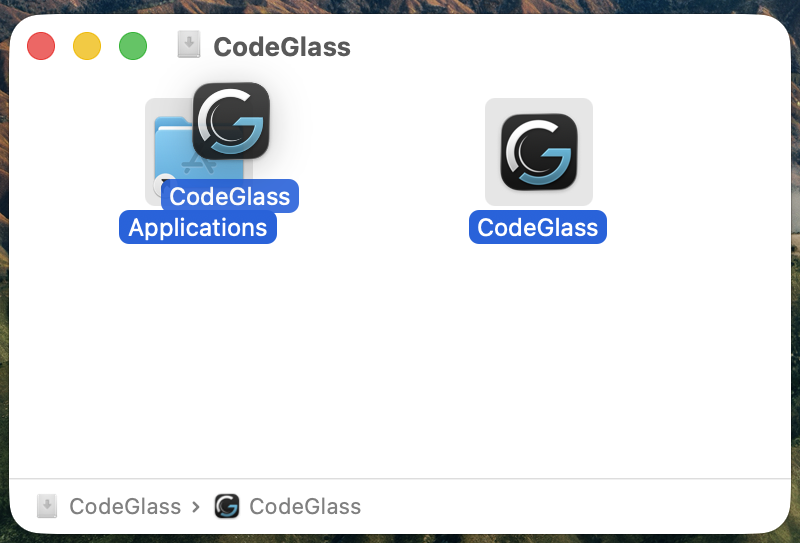
-
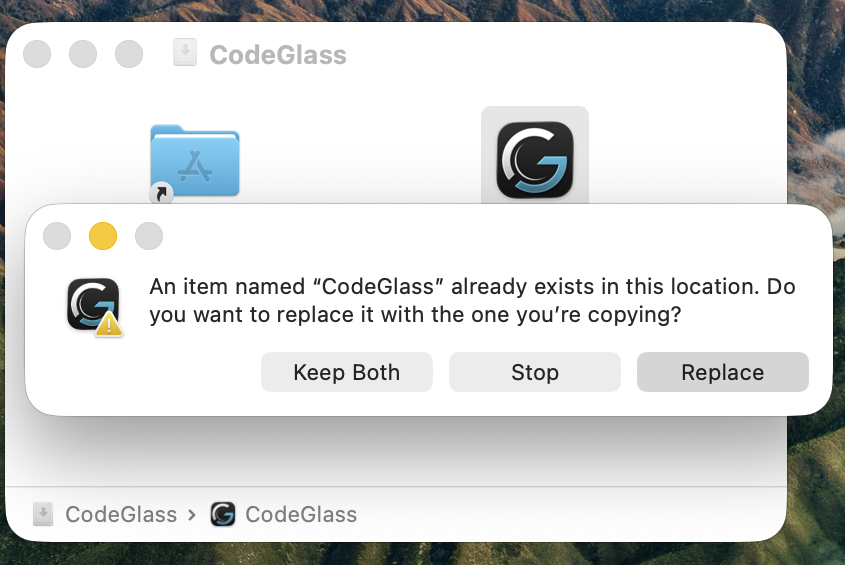
When prompted with ‘An item named “CodeGlass.app” already exists in this location’, press the Replace button. This happens when you upgrade to a newer version of CodeGlass.
Running CodeGlass
-
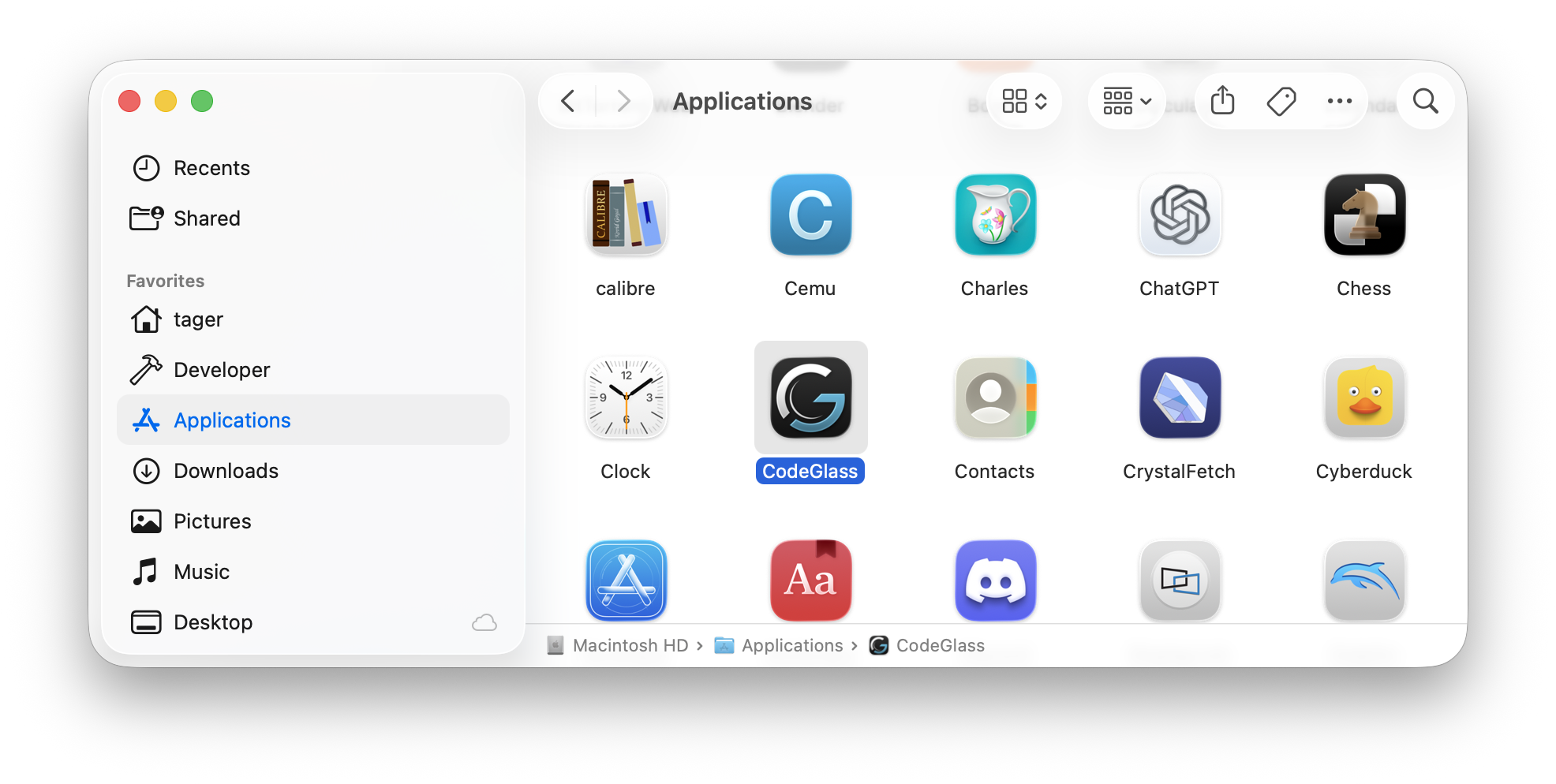
Start the CodeGlass Engine by opening Finder, go to the Applications folder in the sidebar and double click on CodeGlass.
-
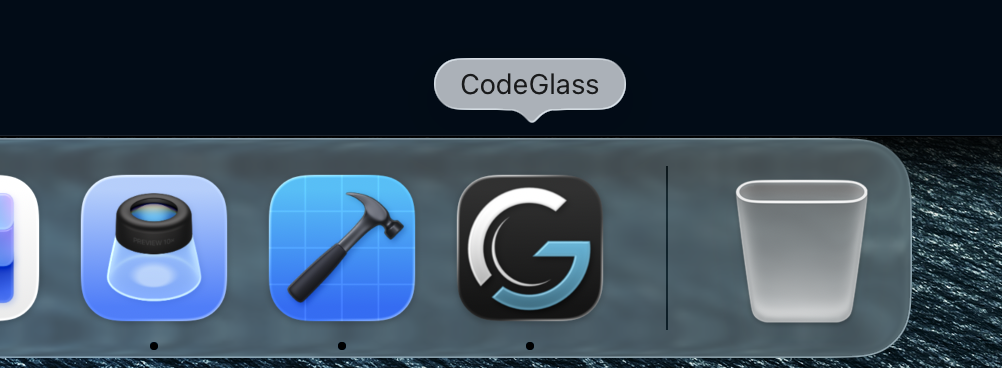
CodeGlass should now appear in the dock:
-
Starting CodeGlass will launch your default browser and navigate to the CodeGlass Client. If it doesn’t, you can click op CodeGlass in the dock to reopen the window. Please note that Safari is not supported at the moment, use Firefox or Chrome instead.
-
Log in and start working with the data the CodeGlass Agent collected.
If the browser fails to open automatically, you can manually navigate to:
http://localhost:30340
Quitting CodeGlas
-
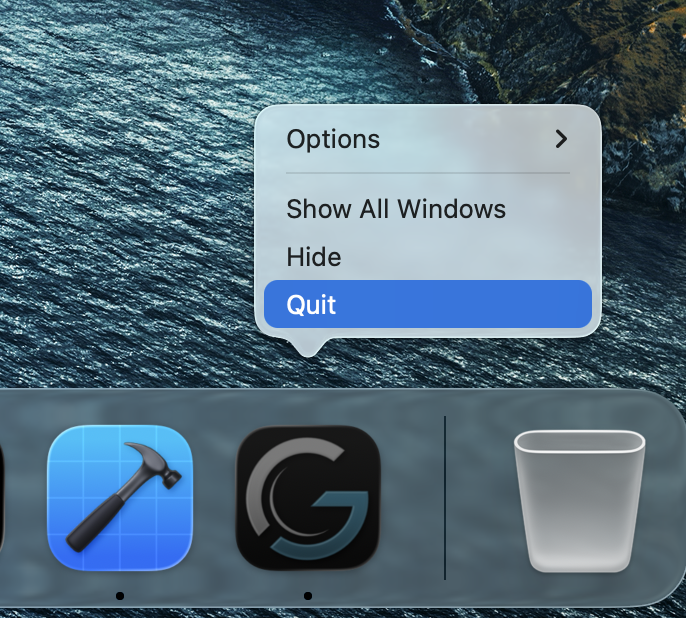
Go to CodeGlass in the Dock.
-
Right click on it (when using a trackpad, use two fingers or press Control while clicking).
-
Press Quit to stop CodeGlass.
When you have the CodeGlass Client open in your web browser, pressing the Quit button might not do what you expect. Try closing all CodeGlass Client browser tabs and trying again. If that still doesn't work, see Quitting CodeGlass using Activity Monitor.
Config Folder
The Engine is designed so it does not write files to the folder where it was extracted. This makes it possible to run it from locations that are read-only.
By default, all user-specific files are stored in ~/Library/Application Support/CodeGlass. If you wish to override this default location, see Overriding the Config Folder location.
You can navigate to this folder by following these steps.
-
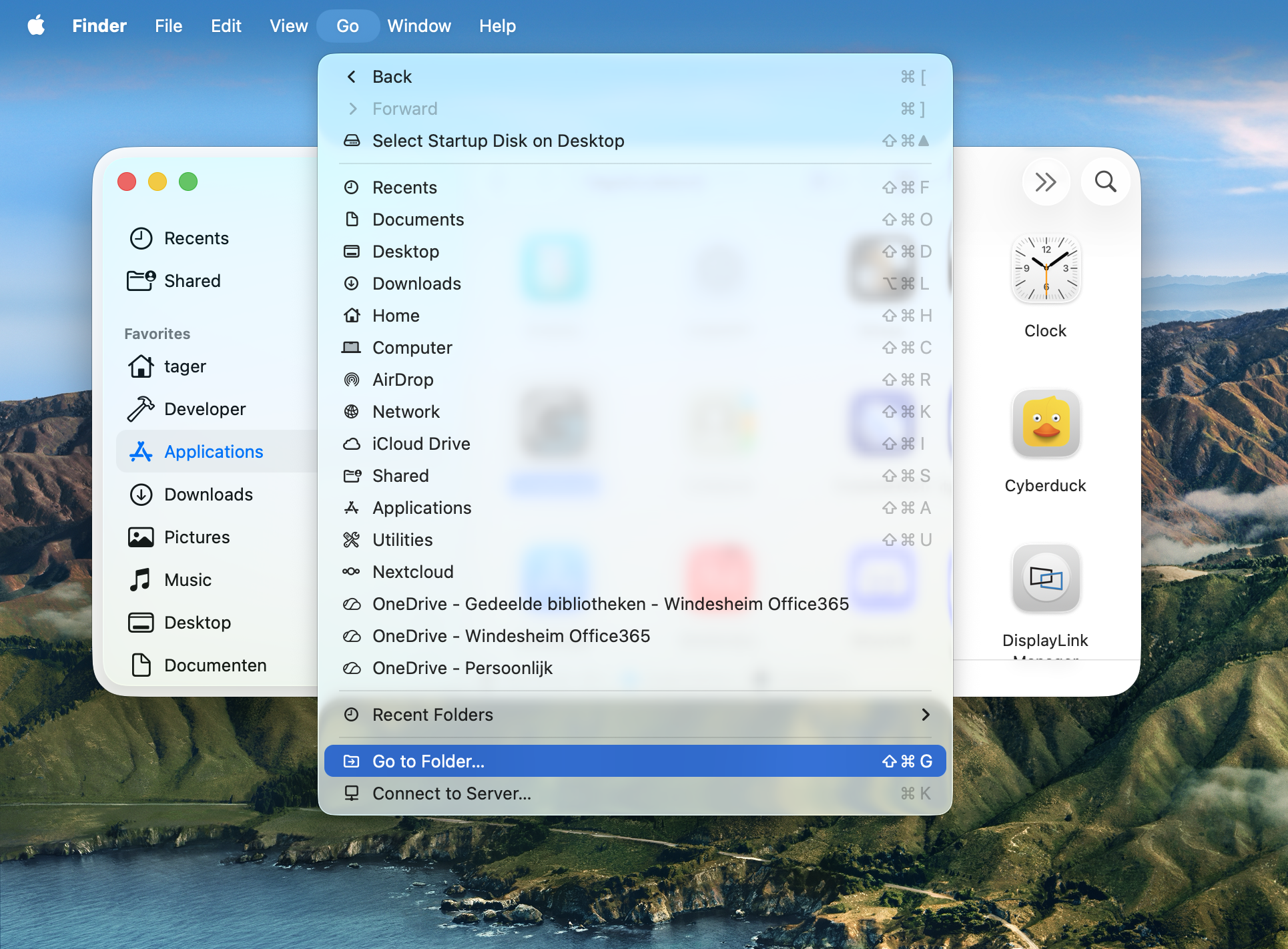
Open Finder.
-
In the menu bar, under the Go menu, press Go To Folder...
-
Enter
~/Library/Application Supportin the location field: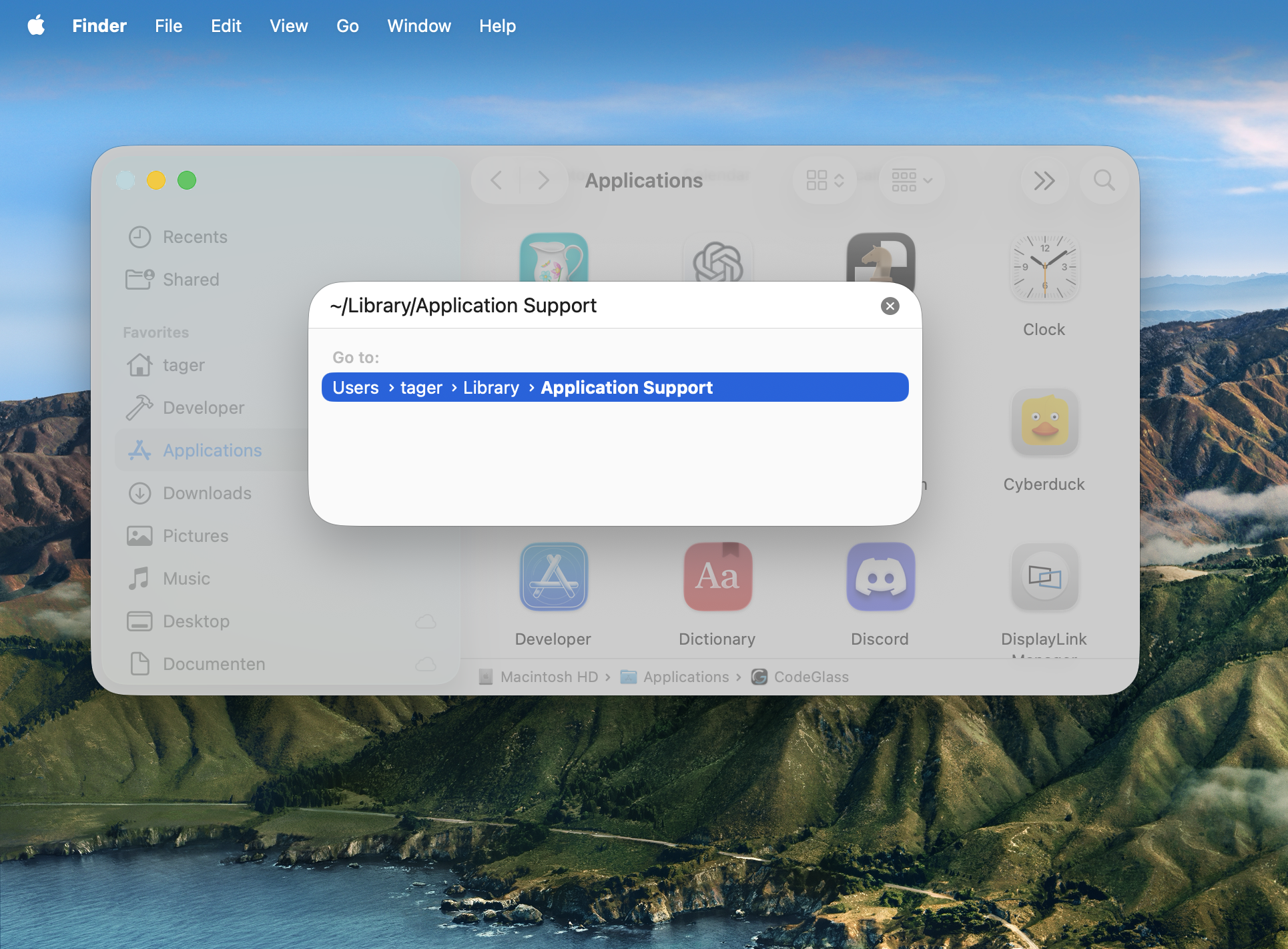
Advanced
The instructions above should work for most use cases. Read below if you want to dig in more advanced macOS-specific topics about CodeGlass.
Overriding the Config Folder location
You can override this location by setting the CODEGLASS_USERFOLDER_OVERRIDE environment variable before starting the Engine:
launchctl setenv CODEGLASS_USERFOLDER_OVERRIDE "path/to/new/config/folder"
Starting CodeGlass from the Terminal
If you prefer starting CodeGlass from the command line, you can run the /Applications/CodeGlass.app/Contents/MacOS/CodeGlassShim executable from the Terminal. This will open CodeGlass just like you would when you start it from the Applications folder.

You can also start the CodeGlass Engine directly, bypassing the CodeGlass shim (which will therefore not show CodeGlass as running in the dock). You can do this by running: /Applications/CodeGlass.app/Contents/Resources/CodeGlass/CodeGlass.Engine

Quitting CodeGlass using Activity Monitor
Sometimes quiting CodeGlass from the Dock, as explained in Quitting CodeGlass, doesn't work quite as expected. This can happen for a variety of reasons, such as having a lingering connection to the Engine somewhere. To stop CodeGlass in those cases, follow these steps.
-
Open Activity Monitor
-
Search for
CodeGlassand select all occurrences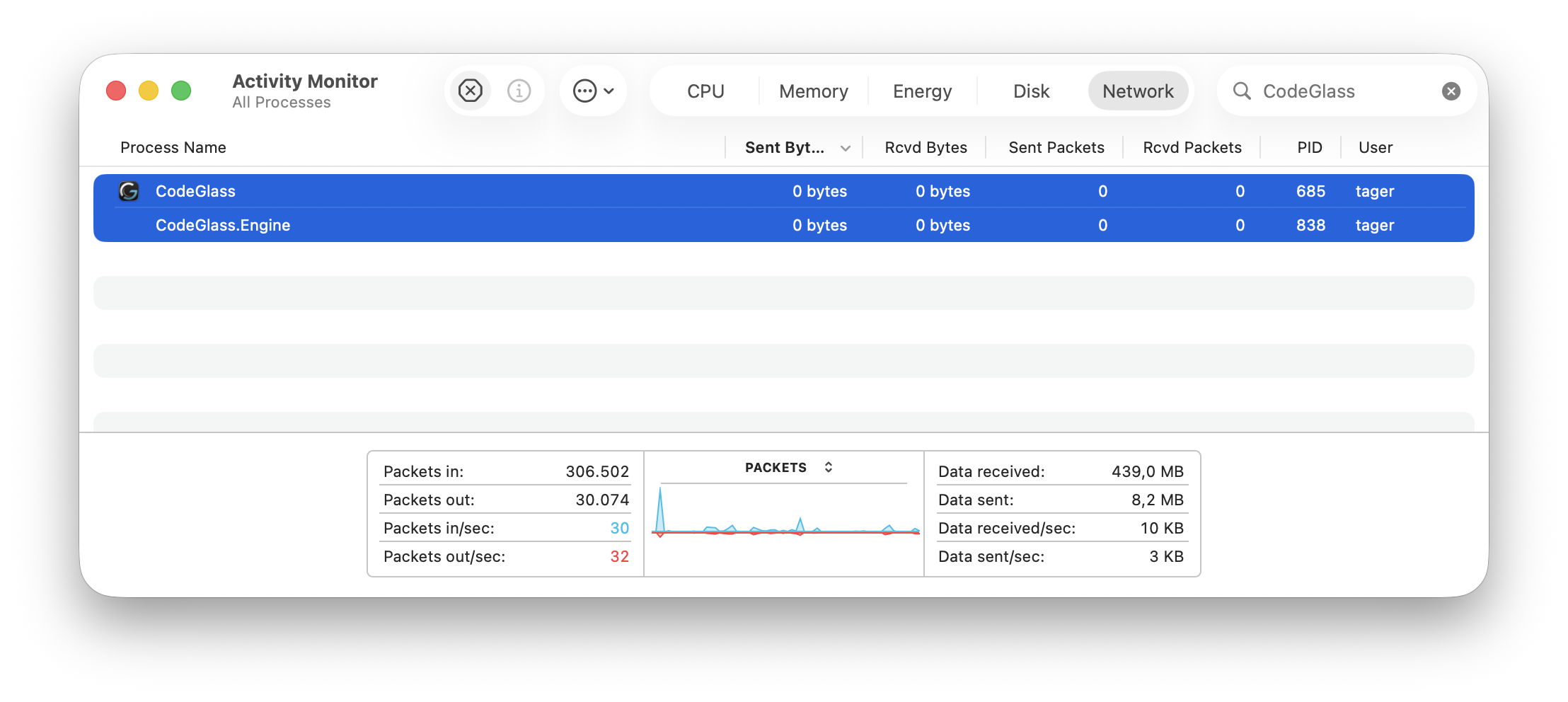
-
Press the stop button (the hexagonal X in the top toolbar)