Settings
In CodeGlass, there are three different levels of settings. First, you have the global settings. These settings are used for every new application.
Next, the application settings can be configured for each new instance created within that application.
Finally, you can view the instance settings for each instance. These settings cannot be changed, as they are defined at startup.
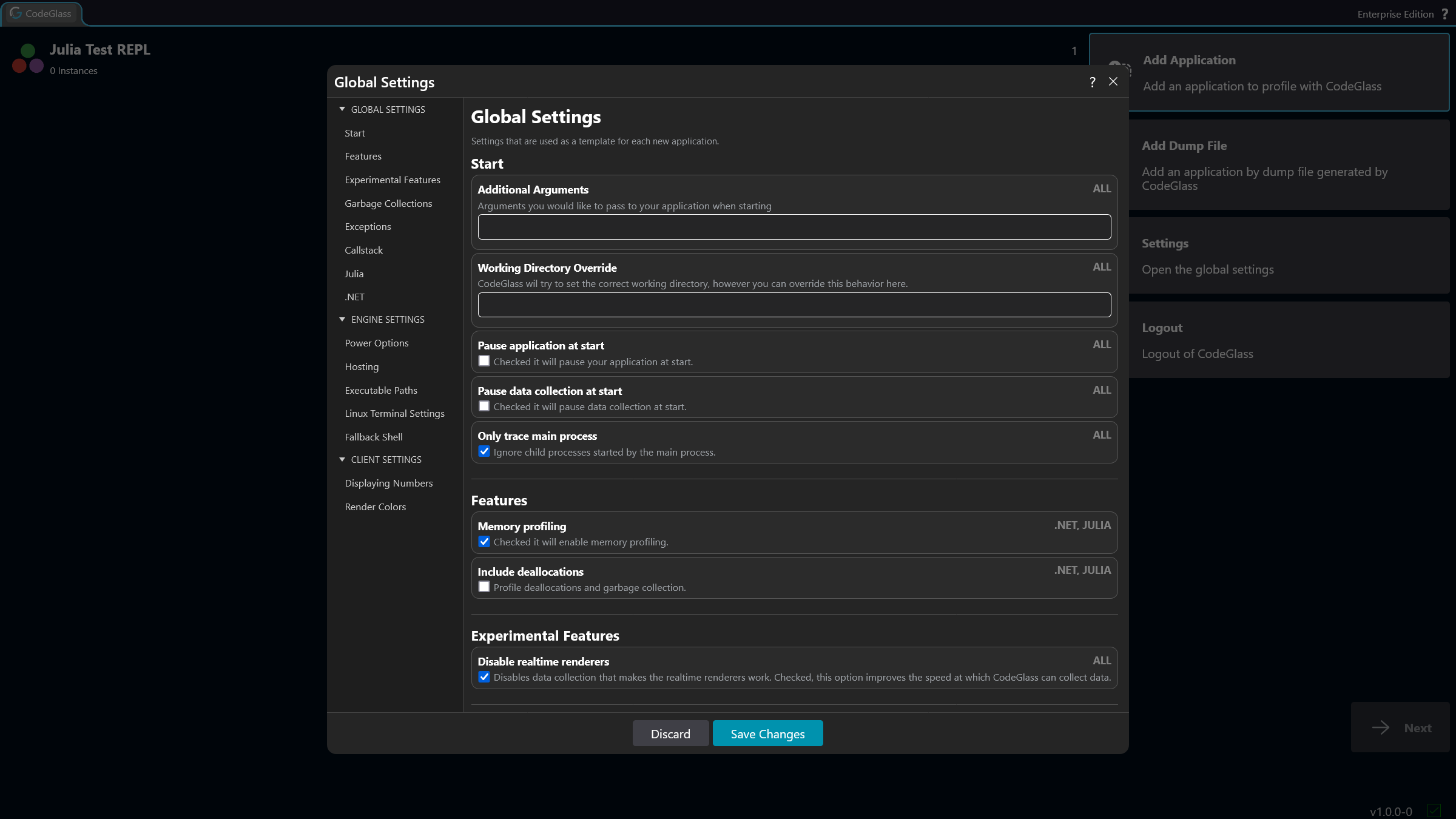
Each setting lists the languages it supports. If an application does not support a setting, that setting is not shown in its application or instance settings.
Agent
Start
Additional Arguments
Arguments that will be included in the start instructions of your application.
Working Directory Override
CodeGlass will try to set its correct working directory, but this can be overridden by defining the path of your working directory.
Pause Application At Start
When enabled, your application will be paused at the start.
You can continue the application through the toolbar on the instance screen.
Pause Data Collection On Start
When enabled, the agent will start with data collection paused. No data is sent to the Engine until data collection is manually enabled again.
You can enable data collection through the toolbar on the instance screen.
You can also enable data collection through the builtin CodeGlass Julia package.
Only Trace Main Process
Languages such as Julia can spawn additional child processes, for example during precompilation.
By default, CodeGlass automatically profiles these child processes. This can slow down execution and create extra instances in the UI.
Enabling this option prevents CodeGlass from profiling child processes. If your application relies on them, leave this option disabled.
Features
Memory Profiling
When enabled, the Agent will listen for memory allocation events and send this information to the Engine.
Include Deallocations
When enabled, the agent will track garbage collection and deallocation events and send them to the Engine.
This option is only available when Memory Profiling is enabled.
Experimental Features
Disable Realtime Renderers
When checked, it will stop the data collection for the realtime renderers. This will improve the speed at which CodeGlass can process data.
Garbage Collections
Maximum Garbage Collection History
This value controls how many garbage collections CodeGlass keeps in its history, as they can contain a large amount of data.
Exceptions
Maximum Exceptions History
Exceptions can contain a lot of data. By setting this value, you tell CodeGlass how many exceptions it should keep stored in its history.
Callstack
Maximum Of Stored Callstack History
By setting this value, you tell CodeGlass how many items it should keep stored in its callstack history.
Julia
Julia Profile Preset Type
CodeGlass allows you to start Julia with multiple different profiling presets. These presets are described here.
.NET
Disable All Code Optimizations
When checked, it will disable all code optimizations done by the runtime/compiler.
Disable All Function Inlining
When checked, it will disable all function inlining done by the runtime/compiler.
Experimental hooks
When checked, it will use experimental hooks.
Engine
Power Options
Automatic Engine Shutdown
When enabled, the engine will shutdown when there are no active connections to agents and clients left.
Register Engine For Starting Through Browser
Whenever the engine is shut down, attempting to log in via the browser will start it back up.
When enabled, a registry entry (Windows), a desktop entry (Linux), or an app bundle (macOS) will be created.
When disabled, the registry entry (Windows), the desktop entry (Linux), or the app bundle (macOS) will be removed.
Hosting
Serve Client Over HTTPS
By default, the client is served over HTTP and is only accessible from the same machine. This is because a signed certificate is required to serve content over HTTPS.
If you want to connect remotely to the Engine, you need to enable HTTPS with this setting. This change will take effect the next time the Engine is started and will cause the browser to display a warning prompting the user to accept the self-signed certificate.
When you enable this option, CodeGlass generates a self-signed certificate. Depending on your computer (network) settings you may need to do more configuration to allow other computers to access your computer from the network.
These are not CodeGlass specific and you should only do them if you know what you are doing as this may impact the security of your device.
If you disable this option, CodeGlass will automatically remove the self-signed certificate the next time you restart the Engine.
Executable Paths
Julia
The path to the CodeGlass Julia executable.
This path will be used to start Julia applications from the Engine. It is also used to determine the start instructions of a Julia application.
Linux Terminal Settings
On Linux, when you start a new Julia instance by clicking Start Integration, it tries to start Julia in the terminal that the Engine is running in. This is not expected behavior, you want the Julia instance to open in a new terminal. Linux has the problem that there is no way of finding or using a default terminal. These settings can be used to configure your terminal to use.
Terminal Command
The actual command to start your terminal, like:
- gnome-terminal
- konsole
- xterm
- alacritty
- kitty
Terminal Argument Command
The argument needed to execute a command when calling the terminal.
For the examples above:
- gnome-terminal: --
- konsole: -e
- xterm: -e
- alacritty: -e
- kitty: -e
Fallback Shell
Use PowerShell As Fallback Shell
Set if CodeGlass should use PowerShell as fallback shell if no default system shell could be used to launch an application.
When you click on the Start Integration button, the Engine tries to start you application in a new shell instance. For terminal based applications, like Julia, this can have the problem that it starts in the same shell as the engine was started in (as the system sees it as a child process).
This problem can be solved, by starting a new instance of your shell, and running the application in there. But there is no native cross-platform way of starting a new shell. To fix the issue, CodeGlass ships with PowerShell build in. When CodeGlass could not start an instance of your native shell, and this option is enabled, CodeGlass starts a PowerShell and starts your application in there. If this option is disabled, CodeGlass will still try and start your application, but it might start in in the same shell as the engine is currently running.
Client
Displaying Numbers
Separator Character
Here you can define the character that CodeGlass should use to separate thousands. (Ex. 1.000 or 1_000)
Decimal Character
Here you can define the character that CodeGlass should use to separate decimal values. (Ex. 1.0 or 1,0)
Render Colors
Here you can configure what colors some of the render screens should use to visualize data. The render screens in CodeGlass often show a gradation of performance using two colors. By default this is a gradation between green (for the best value) and red (for the worst values). CodeGlass automatically calculates the color gradients based on a values percentage relative to the best performing value.
Start Color
The color CodeGlass should use for the 'worst' values.
End Color
The color CodeGlass should use for the 'best' values.