License Portal
CodeGlass uses LicenseSpring as its license provider. Through the LicenseSpring end-user portal, you can manage your subscription and license activations.
This page explains how to use the portal effectively.
Deactivate Devices
You may encounter a message in CodeGlass indicating your subscription is activated on too many devices.
Only License Managers can deactivate devices. If deactivating doesn't work please contact us.
To deactivate a device:
- Navigate to your License.
- Open the Devices tab.
- Click the 3 dots under Actions.
- Use the reset button to deactivate a device.
If you have exceeded the allowed number of deactivations, you will no longer be able to reset devices yourself.
In this case, contact us to reset your deactivation limit.
If you find yourself frequently hitting the device limit, consider purchasing an additional subscription to enable concurrent usage on multiple machines.
License Manager
You are granted the License Manager role if you are the owner of an Enterprise subscription.
License Managers can:
- Reset devices
- Assign and create user accounts for login via the Users tab
Portal Pages
Login
Go to: https://users.licensespring.com/login
You will see:
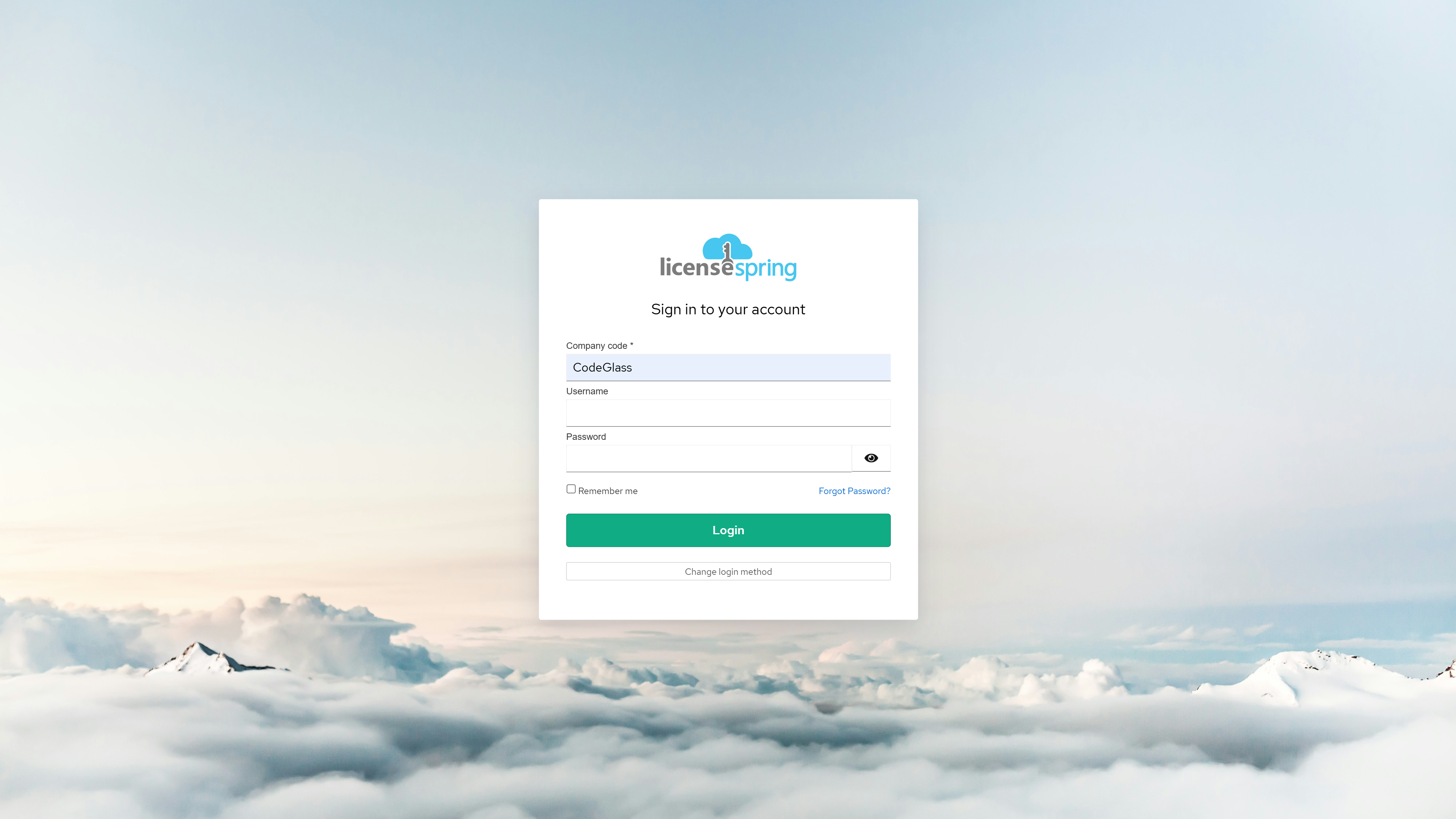
Use:
- Company ID:
CodeGlass - Email & Password: The same credentials used to log in to CodeGlass
If you haven't logged in before, you can find these details in the welcome email from LicenseSpring when you obtained your subscription.
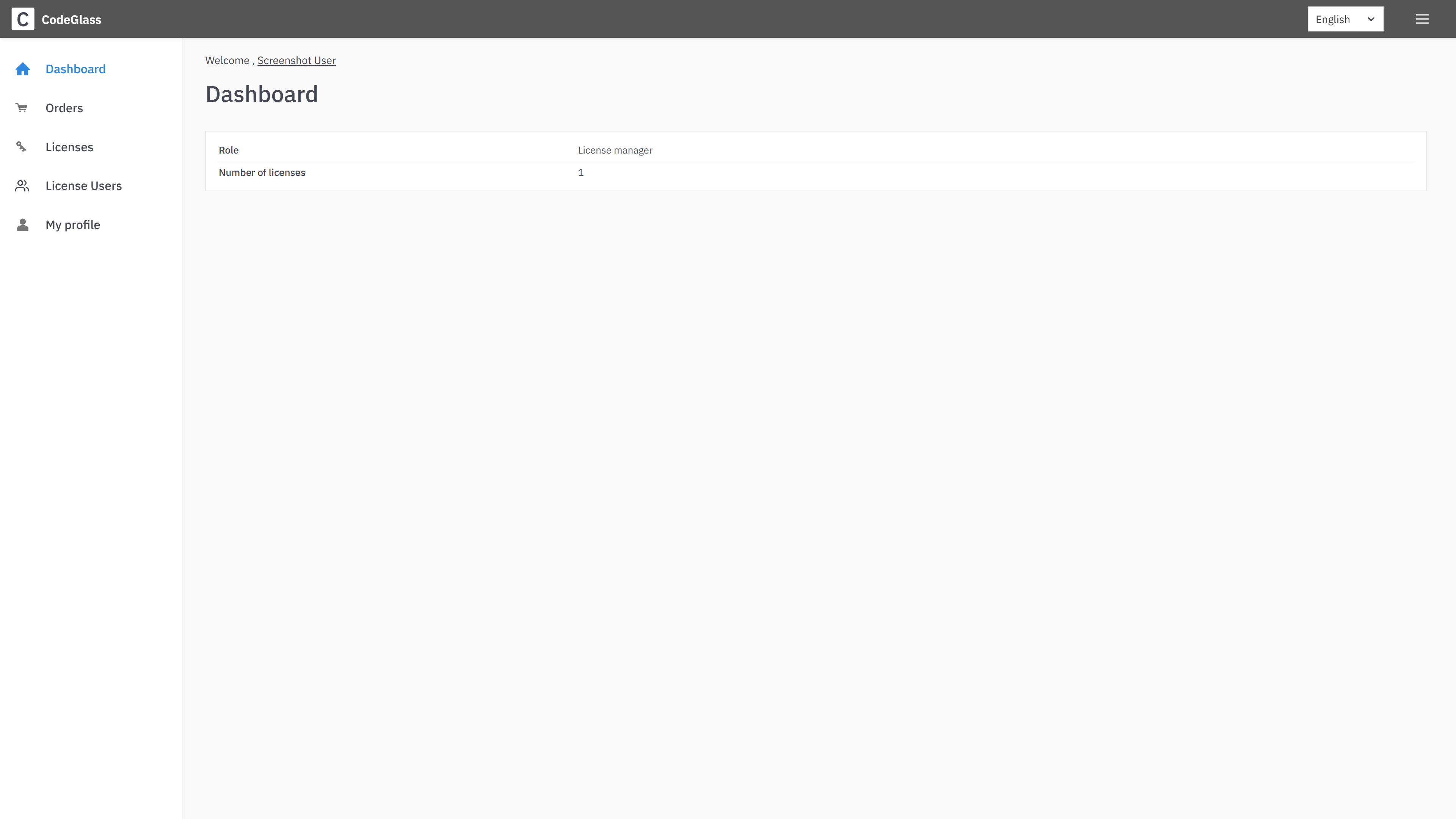
Upon login, you'll see the dashboard:
Licenses
Navigate to: https://users.licensespring.com/licenses
You should see your active subscription listed:
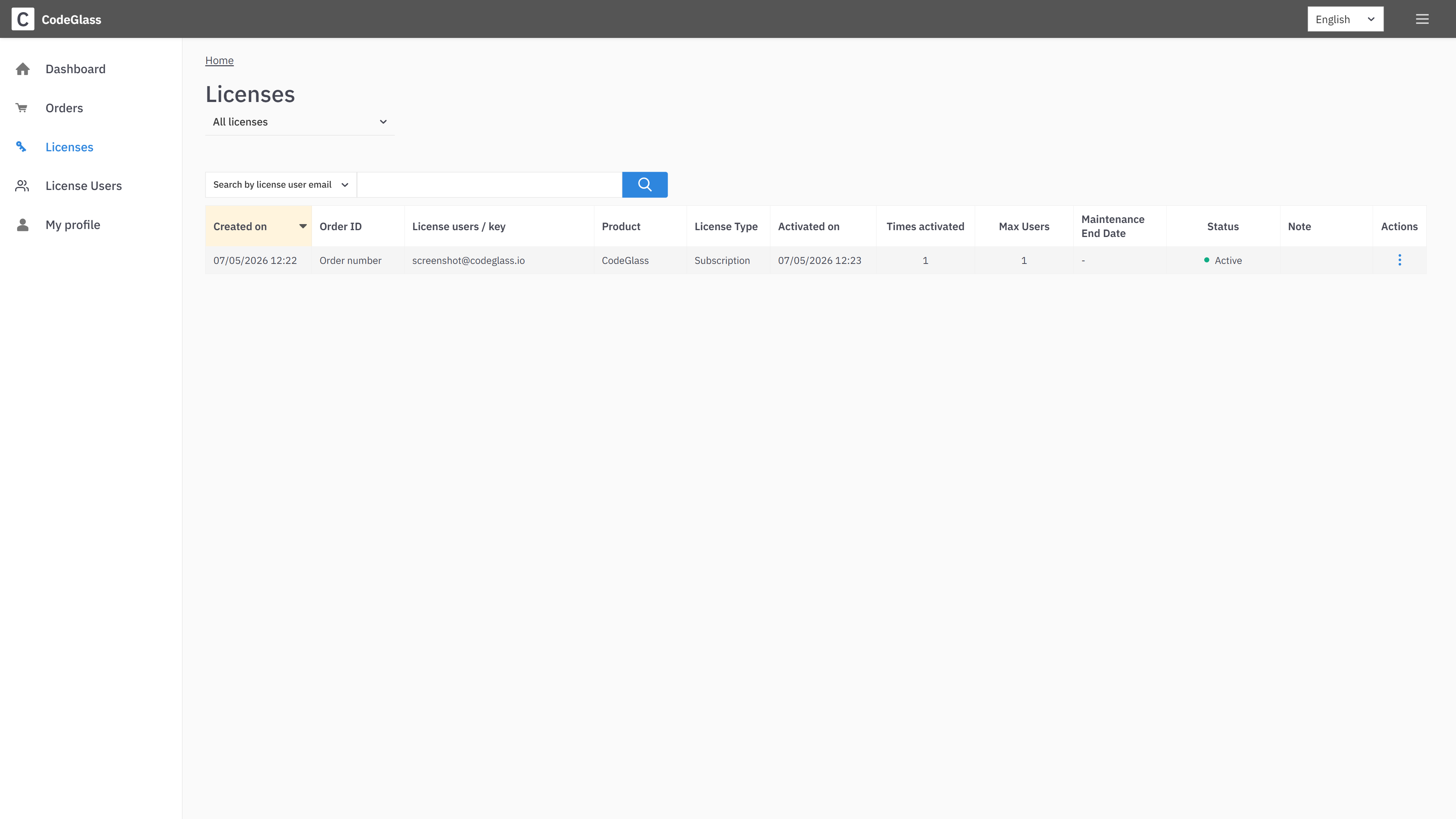
You should only see one entry per account, even if you've purchased multiple licenses. If more appear, please contact us.
License
Clicking on a subscription shows:
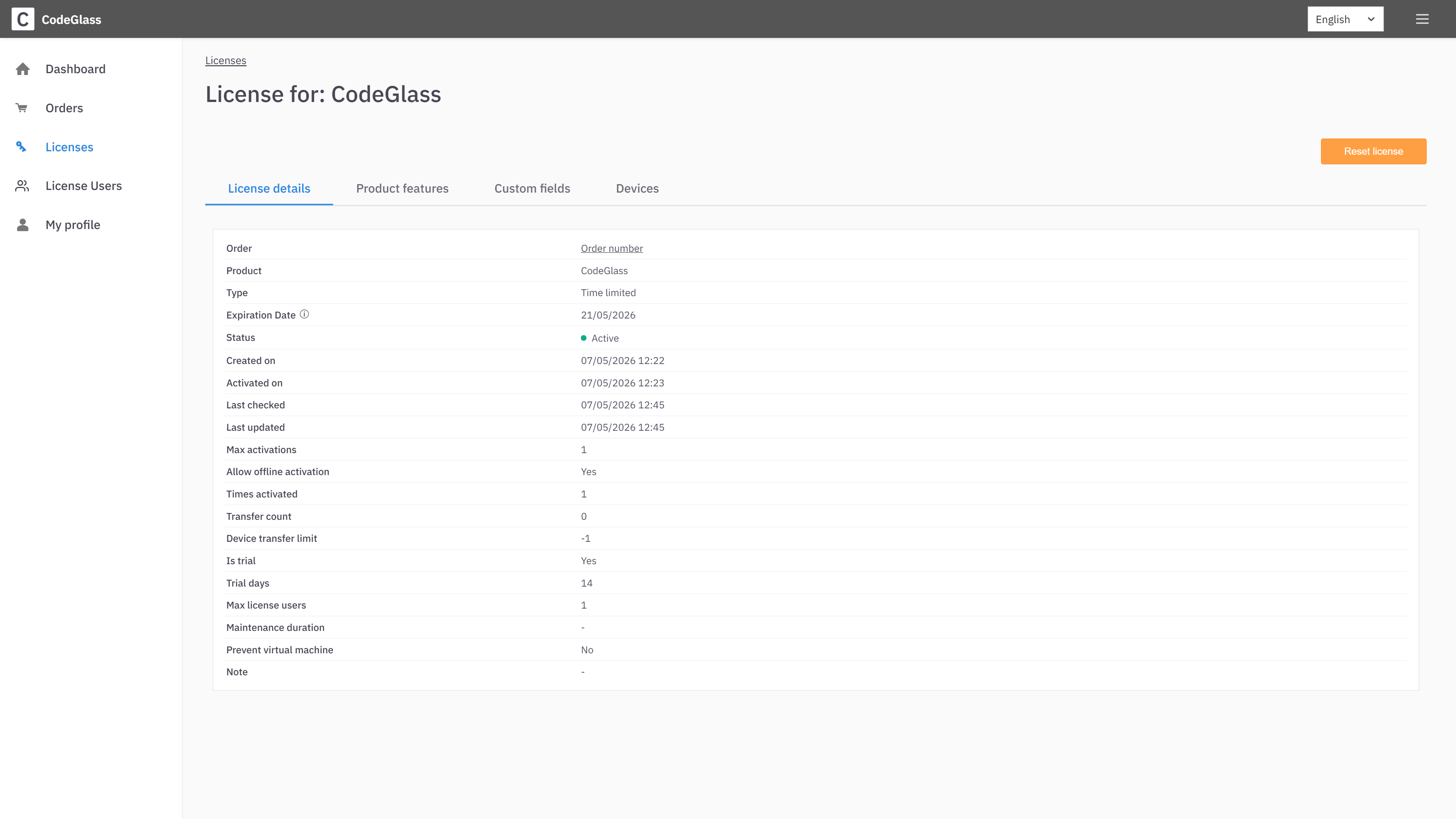
If you are a License Manager, you can use the Reset License button to clear device or user assignments.
Devices
The Devices tab lists all machines activated under your subscription:
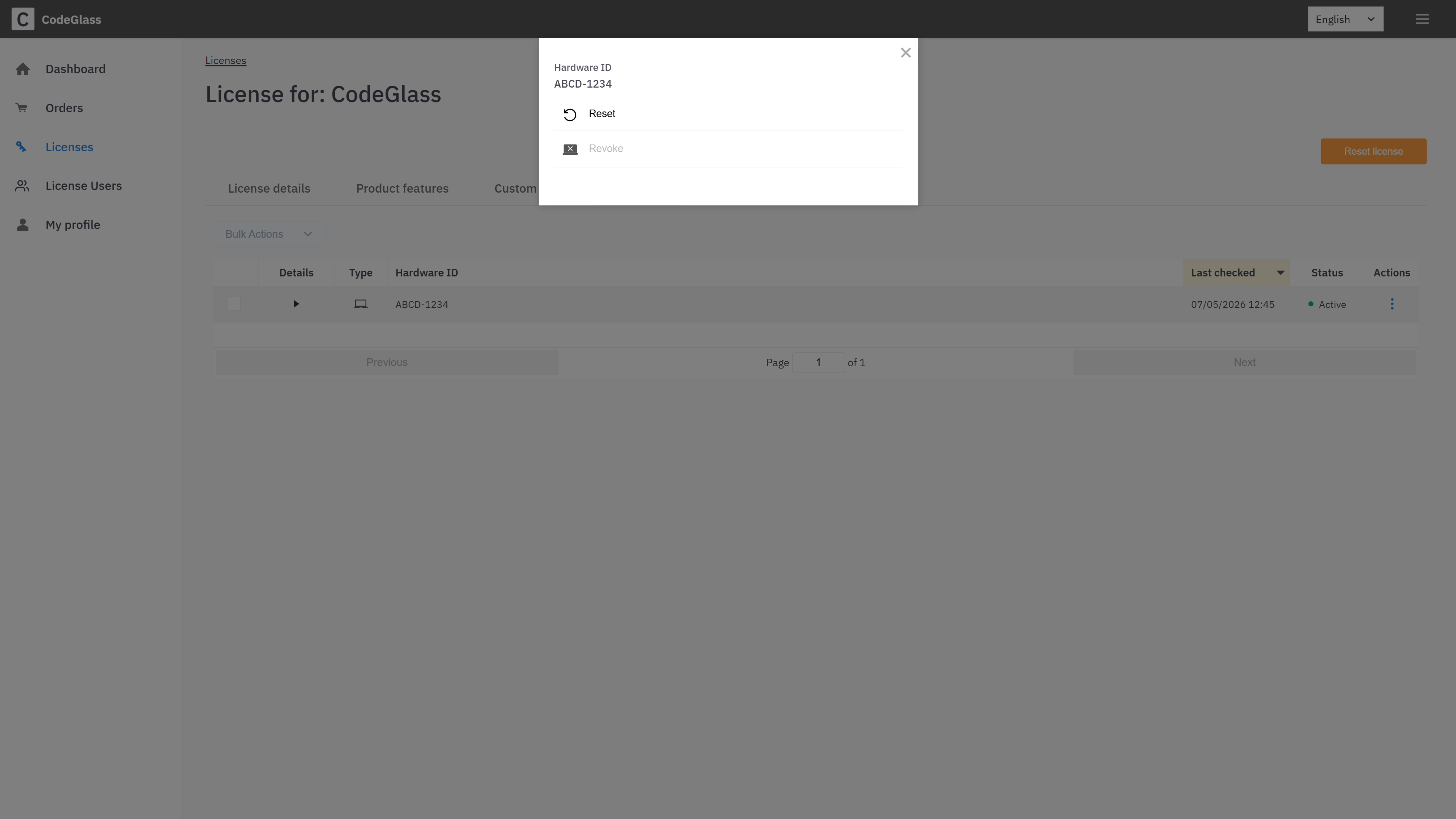
You can deactivate devices here to stay within your activation limit, by clicking on the three dots under "Actions".
Users
Visible only to License Managers:
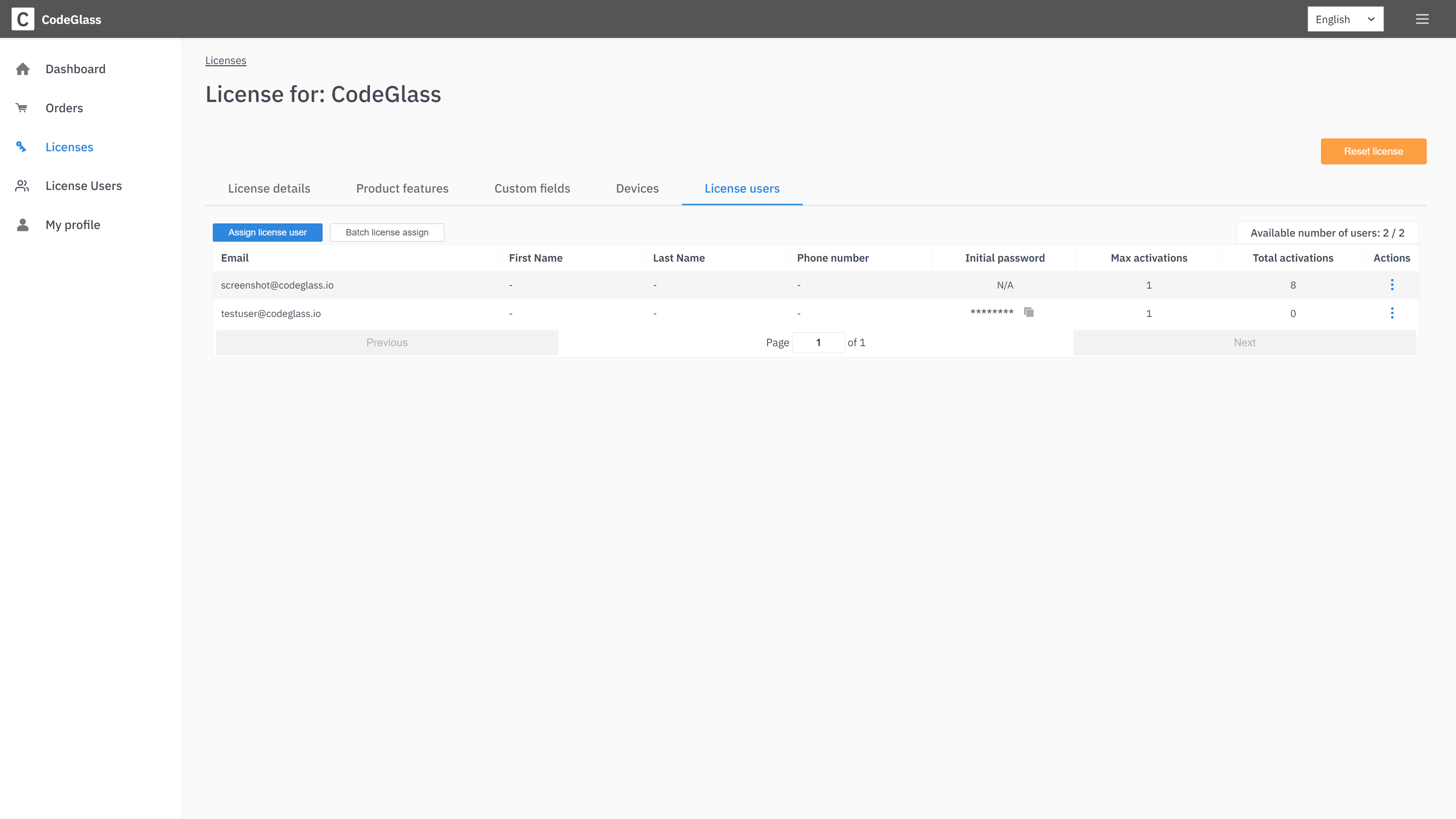
On this page, you can:
- Create user accounts
- Assign users to your subscription
If you receive a “Max license users number reached” error, you must upgrade your subscription to assign additional users.