Exceptions
If exceptions happened outside any of the inspected area, CodeGlass won't collect it as it is unable to link any events to it.
CodeGlass records every exception that happens while your application is running.
When an exception occurs, CodeGlass tries to collect the exception type and, if available, the exception message.
Exception Explorer
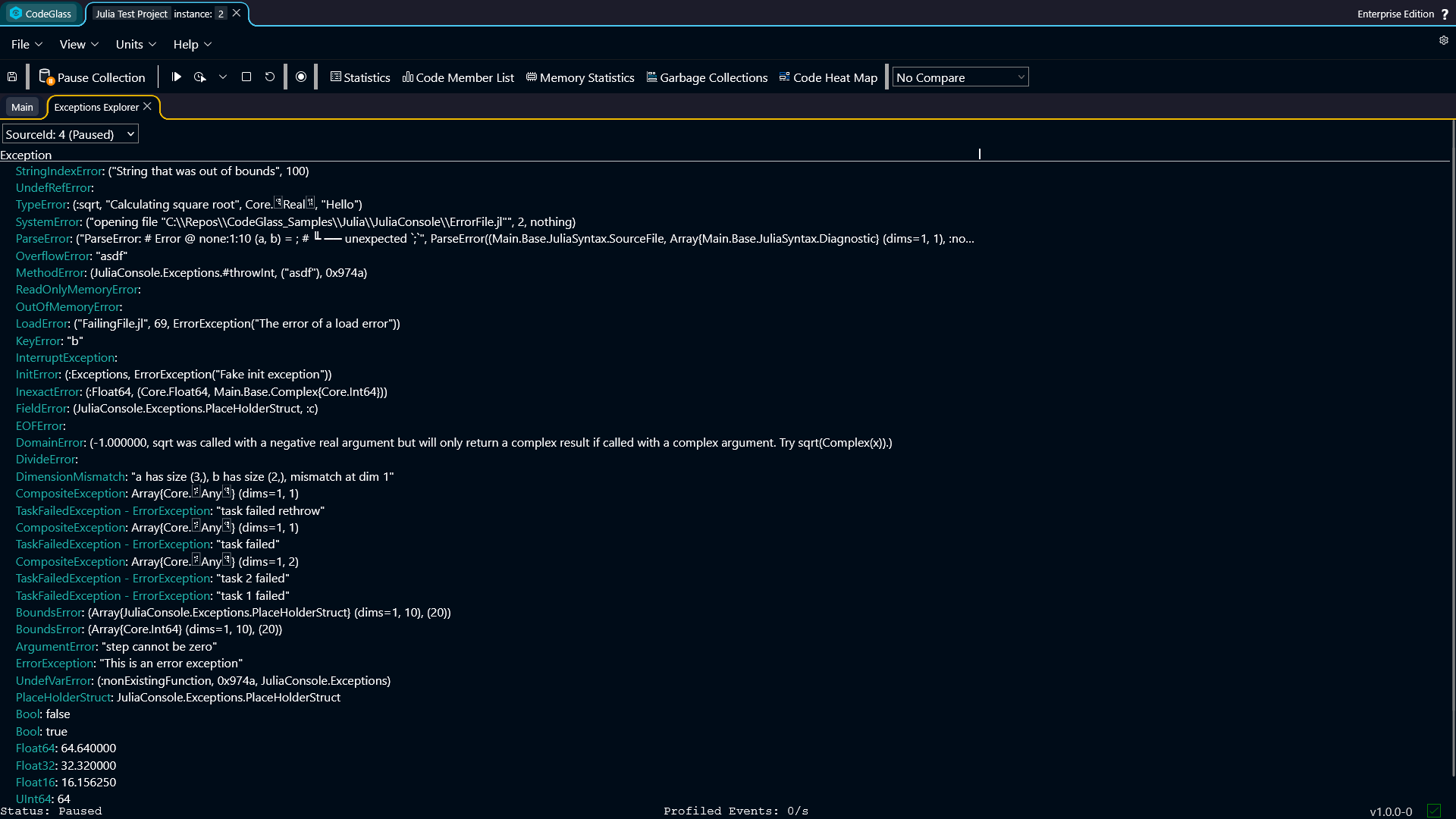
The Exception Explorer shows a list of all exceptions that occurred in your application.
Double-clicking an item in the list opens the Exception Details view.
Exception Details
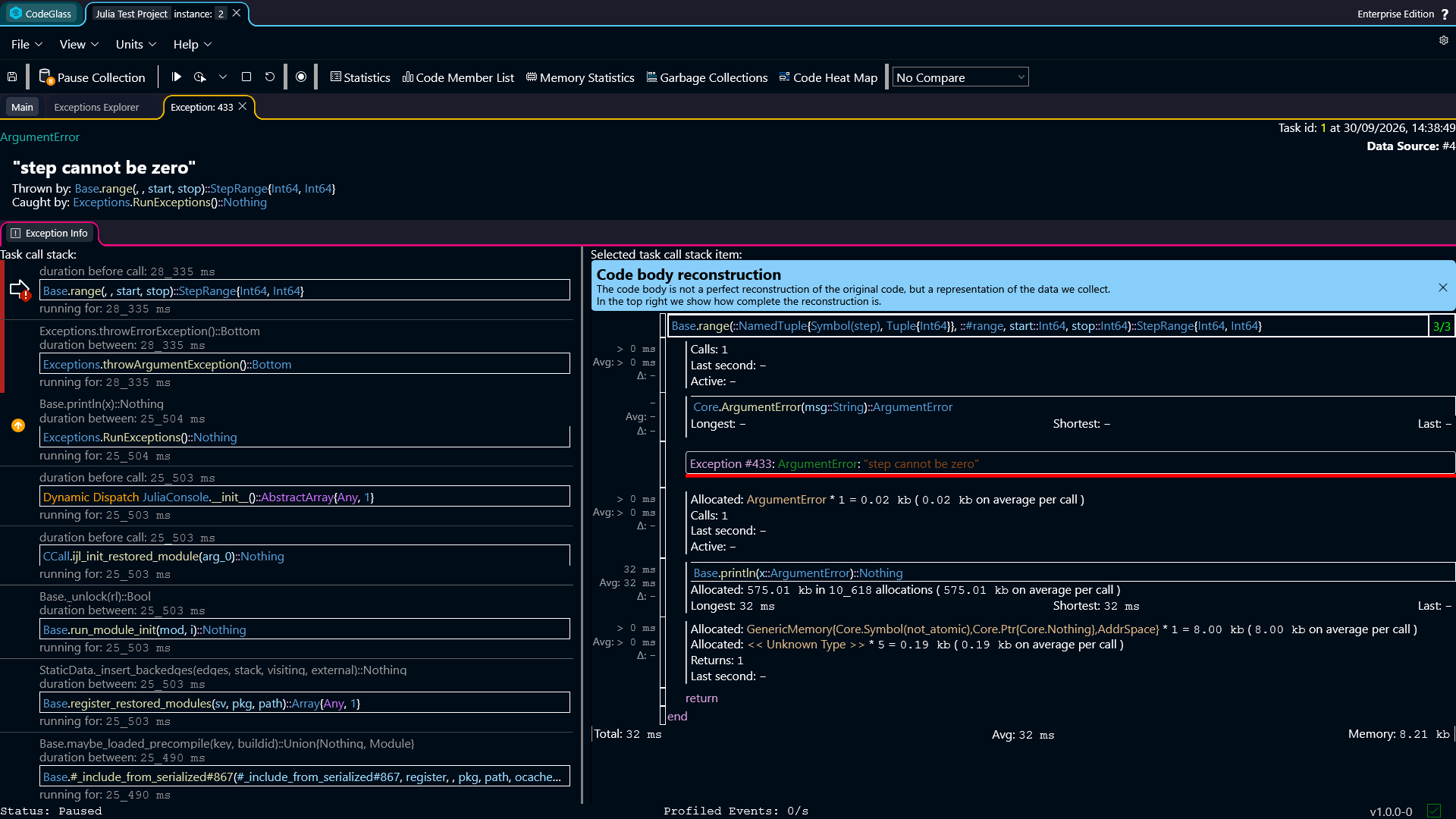
This view shows all information CodeGlass collected about the exception.
At the top you can see a header with basic information, such as the exception type and the exception message. Sometimes the exception type starts with TaskFailedException followed by another exception type. This means that the entire task failed to execute because of the second exception.
Below that you can see which function threw the exception and which function caught it.
Double clicking on these functions opens the code member view for that function.
If CodeGlass did not collect the function that an exception occurred in, it shows <<unknown id>>. These items cannot be clicked to open.
Exception Info
Below the header you will find the Exception Info section. This section contains additional details about the exception.
The screen is split into 2 parts:
- Task Call Stack: Shows the full call stack of the task at the moment the exception occurred. Functions that returned between when the exception is thrown until it is caught are shown with a red line on the left side.
- Code Body Reconstruction: Shows the Code Body Reconstruction view for the function you have selected from the call stack. This also shows on what line the exception occured.
Clicking on an item in the task call stack updates the Code Body Reconstruction view for that function. Double-clicking on an item opens the code member screen for this function.